
Student life
Chromebook Tips and Tricks for Students: 20 Shortcuts and Settings
8 min read · Published October 8, 2026 · SolveCalcPro editorial team
- A handful of keyboard shortcuts will save you more time than any setting.
- The Search key (the one with a magnifying glass or circle) is the Chromebook's equivalent of Windows and Command.
- Press Ctrl + Alt + / to see every shortcut on your keyboard.
- Enable offline mode in Google Docs so homework never depends on WiFi.
Chromebooks are simple, which hides how many shortcuts they have. These twenty tips take a few minutes to learn and save time every school day. The keys are named as they appear on a typical Chromebook keyboard.
Keyboard shortcut cheat sheet
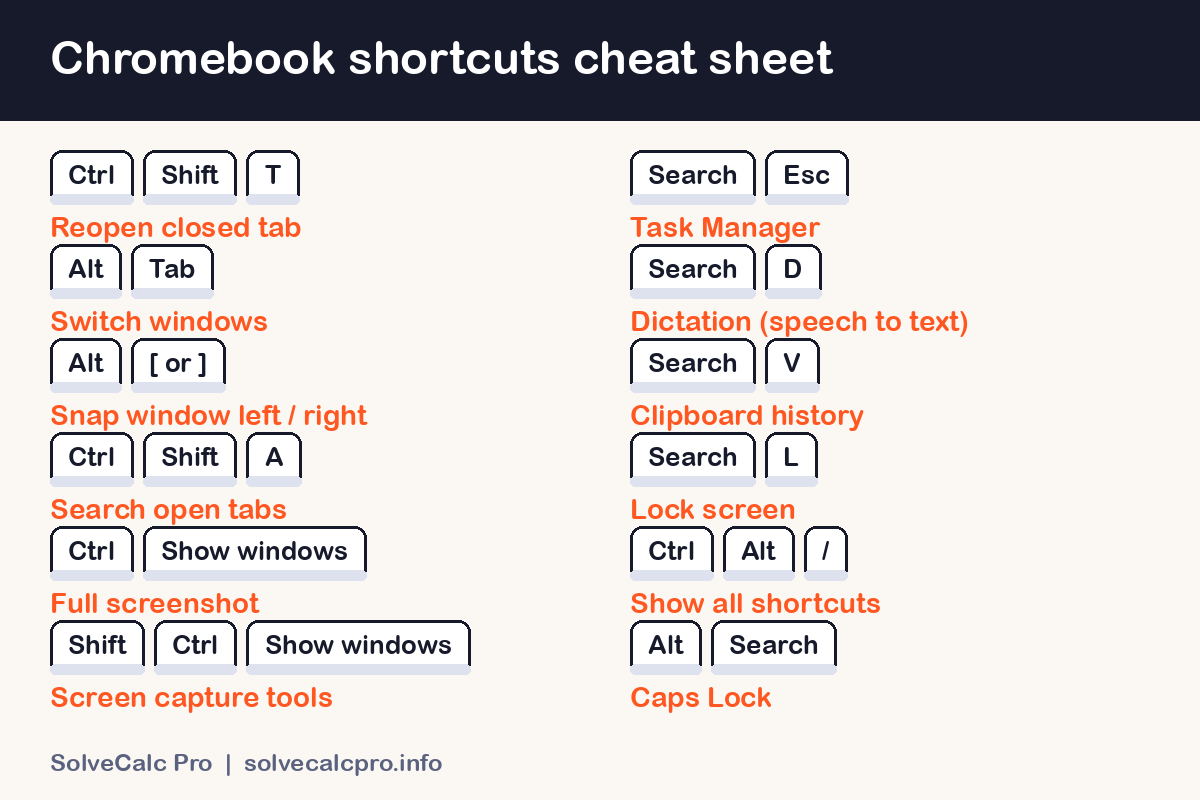
Save or screenshot the card above. The sections below explain each shortcut and add the settings worth knowing.
Windows and tabs
- Switch windows: Alt + Tab.
- Snap a window left or right: Alt + [ or Alt + ]. Perfect for notes on one side and a document on the other.
- Reopen a closed tab: Ctrl + Shift + T.
- Search your open tabs: Ctrl + Shift + A.
- Use virtual desks: open Overview (the Show windows key) and choose New desk to separate school from everything else.
Screenshots and screen recording
- Full screenshot: Ctrl + Show windows.
- Choose an area or record: Shift + Ctrl + Show windows opens the Screen capture toolbar.
- Find your captures: they are saved to the Files app.
Typing and writing faster
- Dictation: Search + D turns on speech-to-text in most text boxes.
- Clipboard history: Search + V shows recently copied items.
- Caps Lock: Alt + Search. Chromebooks have no Caps Lock key.
- Zoom in or out: Ctrl + + and Ctrl + -.
- Offline Docs: turn on offline access in Google Drive settings so you can work without WiFi.
Staying organised and focused
- Pin your apps to the shelf so your most-used ones are one click away.
- Turn on Do Not Disturb from the quick settings panel while you work.
- Lock your screen fast: Search + L.
- Use Google Keep or Tasks for homework reminders.
Keep it running well
- See every shortcut: Ctrl + Alt + /.
- Open Task Manager: Search + Esc to find a tab that is slowing things down.
- Restart weekly, and keep ChromeOS updated.
If it still feels slow, work through how to make your Chromebook faster.
Study smarter on a Chromebook
Plan short focus blocks with study breaks in between. If a break includes a game, pick a light one from our Chromebook games guide, and keep it within your school's rules.
Frequently asked questions
Where is the Search key?
On most Chromebooks it is the key where Caps Lock would be on other keyboards, marked with a magnifying glass or a circle.
How do I take a screenshot on a Chromebook?
Press Ctrl plus the Show windows key for a full screenshot, or Shift plus Ctrl plus Show windows for more options.
How do I see all Chromebook shortcuts?
Press Ctrl, Alt and the forward slash key together.
Can I use Google Docs without WiFi?
Yes, if you enable offline access in your Google Drive settings beforehand.
Keep reading

Play now: unblocked games · classroom games · how Code Mode works.
Written and reviewed by the SolveCalcPro editorial team. Found an error? Tell us. See our editorial policy.